
+- Sick Gaming (https://sickgaming.net)
+-- Forum: Programming (https://sickgaming.net/forum-76.html)
+--- Forum: Python (https://sickgaming.net/forum-83.html)
+--- Thread: [Tut] ModuleNotFoundError: No module named ‘dotenv’ (/thread-100264.html)
[Tut] ModuleNotFoundError: No module named ‘dotenv’ - xSicKxBot - 11-21-2022
ModuleNotFoundError: No module named ‘dotenv’
5/5 – (1 vote)

Quick Fix: Python raises the
Code:
ModuleNotFoundError: No module named 'dotenv'Code:
dotenvCode:
dotenvCode:
pip install python-dotenvCode:
dotenvOther variants of the installation statement you should try if this doesn’t work are (in that order):
Code:
python -m pip install python-dotenv
python3 -m pip install python-dotenv
pip install python-dotenv
pip3 install python-dotenv
sudo pip3 install python-dotenv
pip install python-dotenv – user
py -m pip install python-dotenv
Also, you can try those on Anaconda and Jupyter Notebooks:
Code:
# Anaconda
conda install -c conda-forge python-dotenv # Jupyter Notebook
!pip install python-dotenvYou’ve just learned about the awesome capabilities of the
Code:
dotenvCode:
import dotenvor from the official “Getting Started”:
Code:
from dotenv import load_dotenv load_dotenv() # take environment variables from .env.This is supposed to import the
Code:
dotenvCode:
ImportError: No module named dotenvCode:
>>> import dotenv
Traceback (most recent call last): File "<pyshell#6>", line 1, in <module> import dotenv
ModuleNotFoundError: No module named 'dotenv'The most likely reason is that Python doesn’t provide
Code:
dotenvBefore being able to import the
Code:
dotenvCode:
pipTo fix this error, you can run the following command in your Windows shell:
Code:
$ pip install python-dotenvThis simple command installs
Code:
dotenvCode:
pipCode:
$ python -m pip install – upgrade pip
$ pip install python-dotenv Note: Don’t copy and paste the
Code:
$Solution Idea 2: Fix the Path
The error might persist even after you have installed the
Code:
dotenvCode:
pipCode:
pipCode:
pipTo fix the problem with the path in Windows follow the steps given next.
Step 1: Open the folder where you installed Python by opening the command prompt and typing
Code:
where python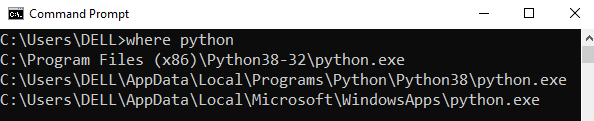
Step 2: Once you have opened the
Code:
PythonCode:
ScriptsCode:
pip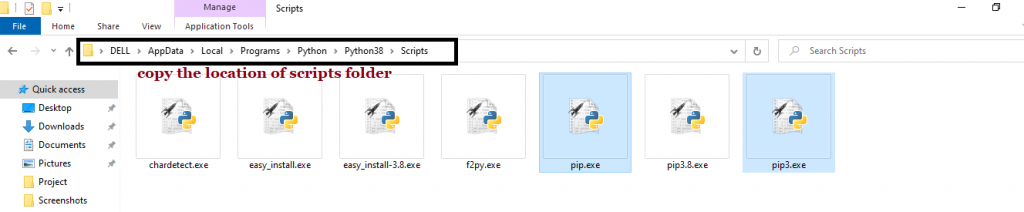
Step 3: Now open the
Code:
ScriptsCode:
cd
Step 4: Now install the library using
Code:
pip install python-dotenv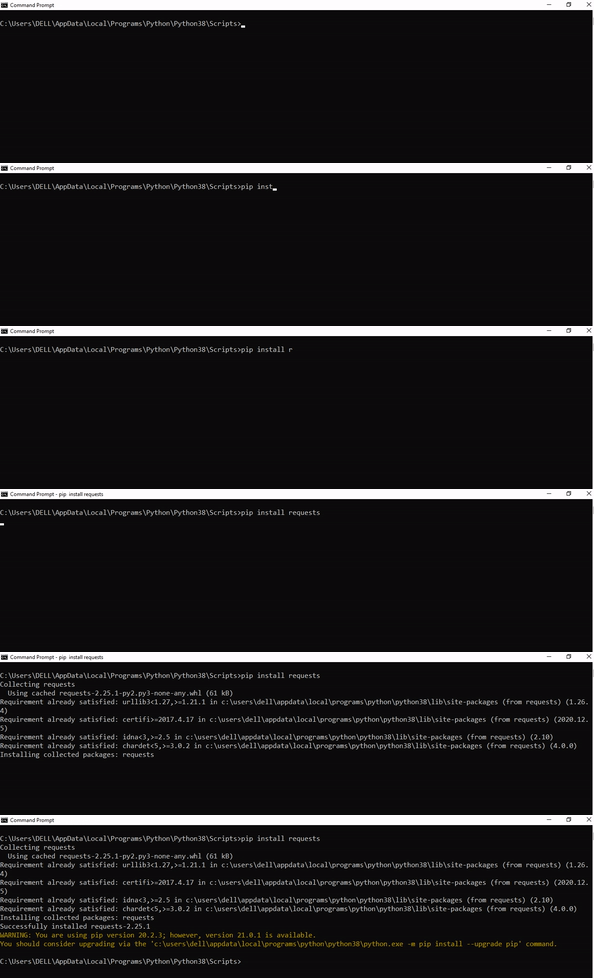
After having followed the above steps, execute our script once again. And you should get the desired output.
Other Solution Ideas
- The may appear due to relative imports. You can learn everything about relative imports and how to create your own module in this article.Code:
ModuleNotFoundError
- You may have mixed up Python and pip versions on your machine. In this case, to install for Python 3, you may want to tryCode:
dotenvor evenCode:python3 -m pip install python-dotenvinstead ofCode:pip3 install python-dotenvCode:pip install python-dotenv
- If you face this issue server-side, you may want to try the command Code:
pip install – user python-dotenv
- If you’re using Ubuntu, you may want to try this command: Code:
sudo apt install python-dotenv
- You can also check out this article to learn more about possible problems that may lead to an error when importing a library.
Understanding the “import” Statement
Code:
import dotenvIn Python, the
Code:
import- Search the module by its name, load it, and initialize it.
- Define a name in the local namespace within the scope of the statement. This local name is then used to reference the accessed module throughout the code.Code:
import
What’s the Difference Between ImportError and ModuleNotFoundError?
What’s the difference between
Code:
ImportErrorCode:
ModuleNotFoundErrorPython defines an error hierarchy, so some error classes inherit from other error classes. In our case, the
Code:
ModuleNotFoundErrorCode:
ImportErrorYou can see this in this screenshot from the docs:
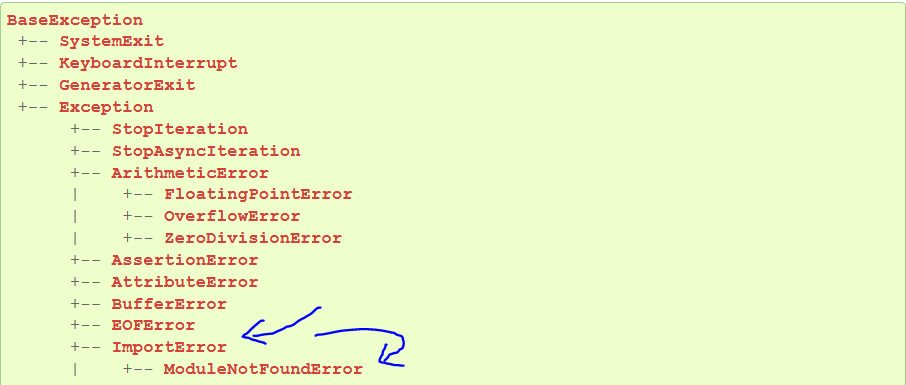
You can also check this relationship using the
Code:
issubclass()Code:
>>> issubclass(ModuleNotFoundError, ImportError)
True
Specifically, Python raises the
Code:
ModuleNotFoundErrorCode:
dotenvCode:
ImportErrorIf an import statement cannot import a module, it raises an
Code:
ImportErrorCode:
ModuleNotFoundErrorRelated Videos
The following video shows you how to resolve the
Code:
ImportError
The following video shows you how to import a function from another folder—doing it the wrong way often results in the
Code:
ModuleNotFoundError
How to Fix “ModuleNotFoundError: No module named ‘dotenv’” in PyCharm
If you create a new Python project in PyCharmand try to import the
Code:
dotenvCode:
Traceback (most recent call last): File "C:/Users/.../main.py", line 1, in <module> import dotenv
ModuleNotFoundError: No module named 'dotenv' Process finished with exit code 1
The reason is that each PyCharm project, per default, creates a virtual environment in which you can install custom Python modules. But the virtual environment is initially empty—even if you’ve already installed
Code:
dotenvHere’s a screenshot exemplifying this for the
Code:
pandasCode:
dotenv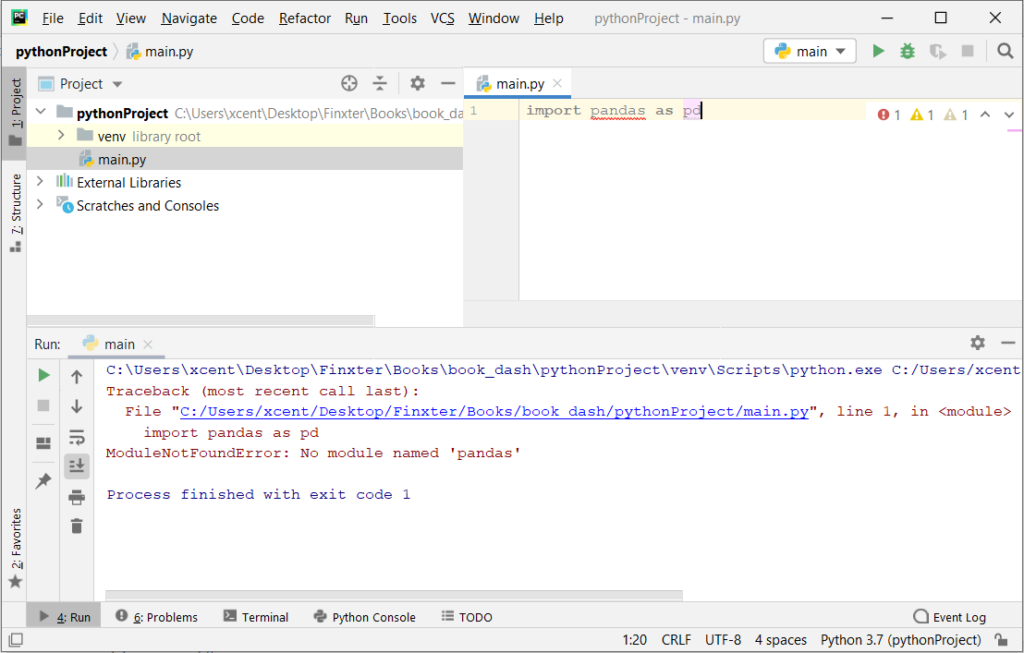
The fix is simple: Use the PyCharm installation tooltips to install Pandas in your virtual environment—two clicks and you’re good to go!
First, right-click on the
Code:
pandas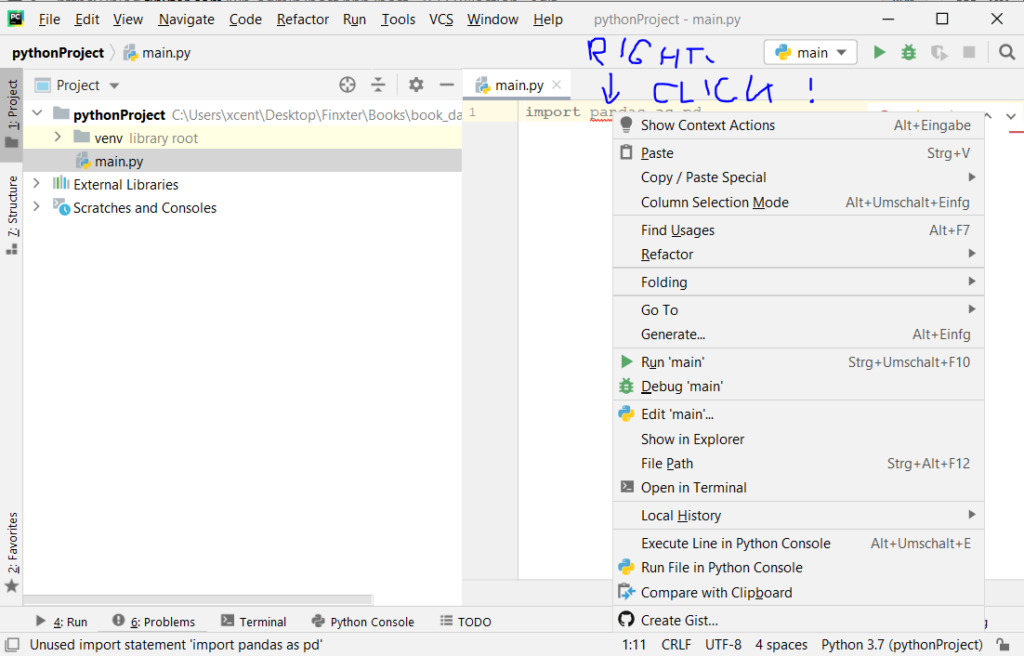
Second, click “
Code:
Show Context ActionsThe code will run after your installation completes successfully.
As an alternative, you can also open the
Code:
TerminalCode:
$ pip install python-dotenvIf this doesn’t work, you may want to set the Python interpreter to another version using the following tutorial: https://www.jetbrains.com/help/pycharm/2016.1/configuring-python-interpreter-for-a-project.html
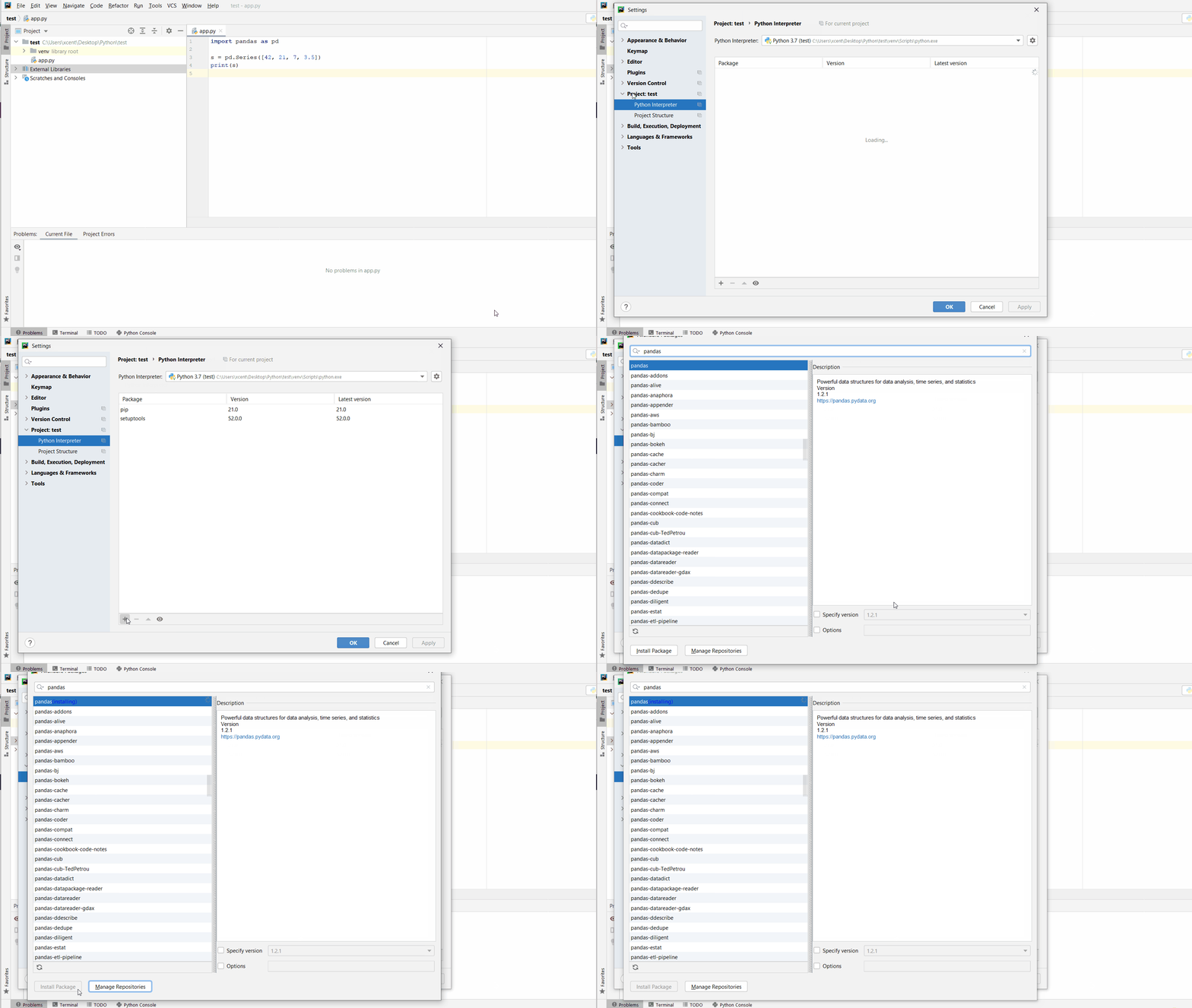
You can also manually install a new library such as
Code:
dotenv- Open from the PyCharm menu.Code:
File > Settings > Project
- Select your current project.
- Click the tab within your project tab.Code:
Python Interpreter
- Click the small symbol to add a new library to the project.Code:
+
- Now type in the library to be installed, in your example Pandas, and click .Code:
Install Package
- Wait for the installation to terminate and close all popup windows.
Here’s an analogous example:
Here’s a full guide on how to install a library on PyCharm.